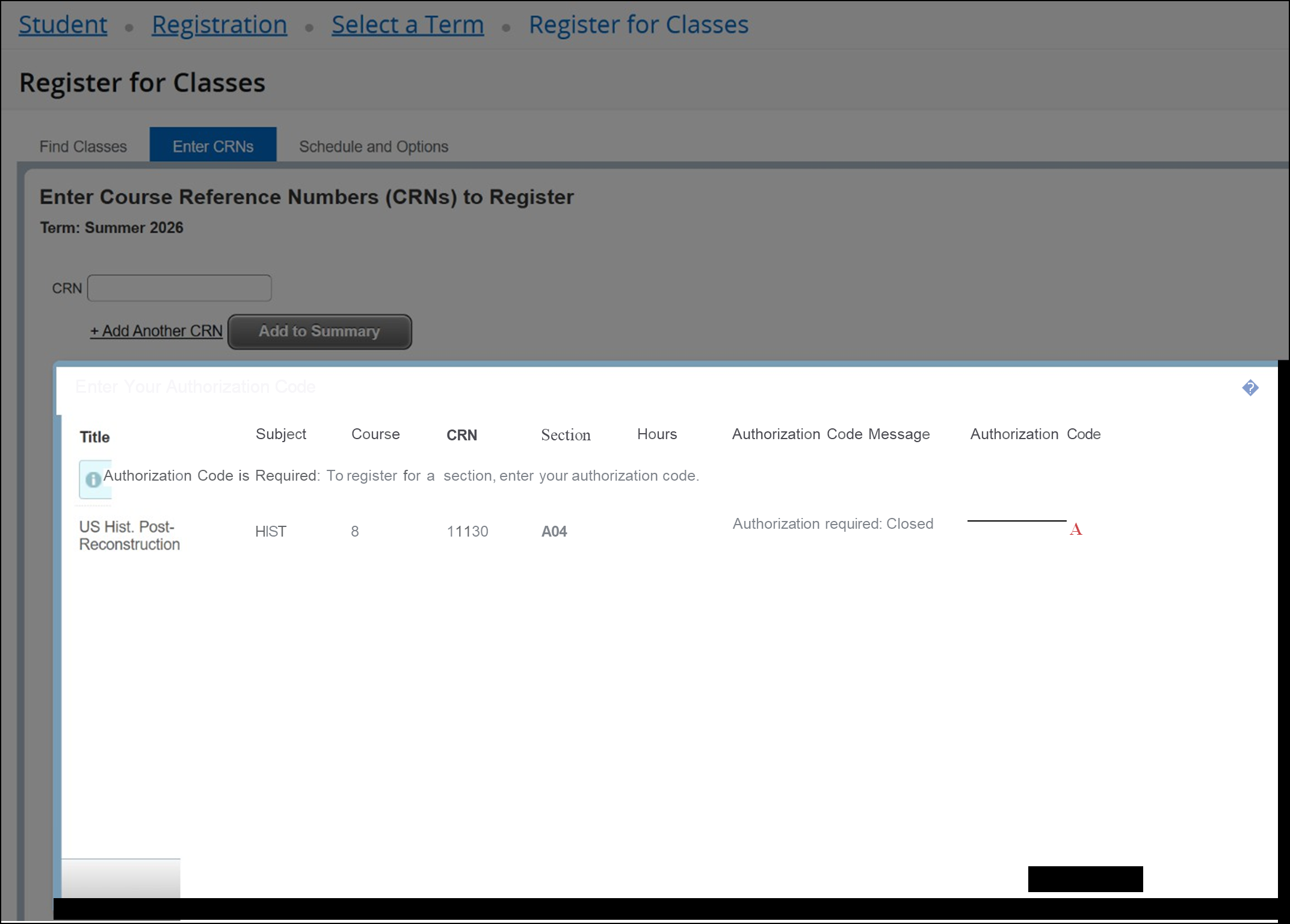
Opening Day Rosters/Add Authorization Code
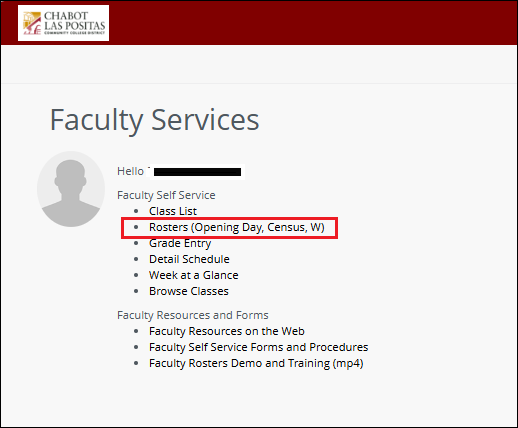
How to access Opening Day Rosters
- Go to MyPortal
- Enter your W# and password
- Navigate to the Faculty Self Service card

- Select Open Faculty Dashboard and click on Rosters (Opening Day, Census, W)
Opening Day Roster
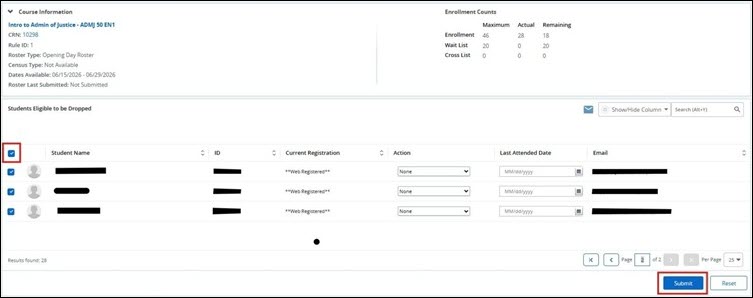
- An opening day roster that is submitted within two days prior to the start of the class will have add authorization numbers generated automatically.
- If the roster has more than 25 rows, or multiple pages, you can either click the arrows
to go to the last page, or expand the counter to increase the number you see on a
page.

- Make sure to select the checkbox to highlight all Double check that this is done on
all pages that contain students. Then select submit.
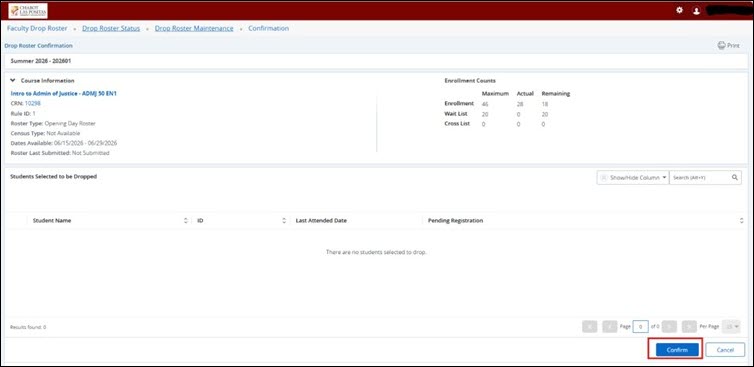
- After you click submit, there will be a confirm box that also needs to be Select Confirm.
- The system will then generate the add This process generally takes 10 minutes from the time that you select Confirm.
- Add Authorizations will then appear under Detail Schedule- > Registration Authorization Codes

Information to provide to Waitlisted students
If an add authorization is given to a student who has been on the waitlist, instructors need to emphasize that the student needs to drop themselves from the WL and then add via the Enter CRNs from the Register for Classes area on the Registration Dashboard for students.
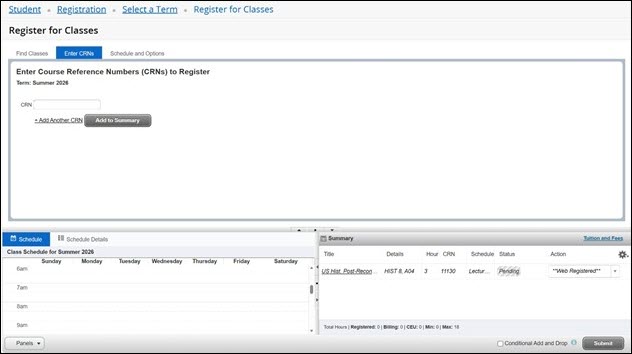
This will then prompt the student to use their add authorization code that the instructor has provided to them.